ReadyView
-
Single Sign-On (SSO) with SAML in ReadyView
ReadyView supports single sign-on (SSO) with any SAML 2.0 identity provider, such as Microsoft Entra ID, Okta or Google Workspace. With SSO set up, your team signs in to ReadyView with their company account.
Things to note:
Setting up SSO requires a role with the Manage SAML Configuration permission. See Roles and Permissions in ReadyView.
Step 1 – Add ReadyView to your identity provider:
In ReadyView, navigate to Administration -> Organization -> Settings. The SAML Configuration panel lists the values your identity provider needs, each with a Copy button. Create a SAML application for ReadyView in your identity provider with these values.
Identity provider field Value Identifier (Entity ID) Your organization ID, shown as Identifier in ReadyView Reply URL (ACS URL) https://readyview-5ff37.firebaseapp.com/__/auth/handlerSign-on URL Your organization's sign-in link, shown as Sign-on URL in ReadyView. It starts with https://ui.readylinks.io/login?sso=Name ID The user's email address (in Microsoft Entra ID: user.mail)Roles (optional) ReadyView role names in an attribute named role. Microsoft Entra ID sends app roles this way. See Roles and SSO below.Step 2 – Set up single sign-on in ReadyView:
- In Administration -> Organization -> Settings, under SAML Configuration, press + Enable SAML
- Paste your identity provider's metadata URL and press Import. ReadyView fills in the entity ID, SSO URL and signing certificate. In Microsoft Entra ID, this is the App Federation Metadata Url
- Check the details and press Save
No metadata URL? Press Upload metadata file, or enter the details yourself:
ReadyView field Value from your identity provider Name in Microsoft Entra ID Entity ID Your identity provider's entity ID, also called the issuer (not your organization ID) Microsoft Entra Identifier SSO URL The sign-in URL Login URL Certificate The signing certificate. Paste it or upload the file, in any format Certificate (Base64) or Certificate (Raw) To change the details later, for example when your identity provider rotates its signing certificate, edit the fields and press Apply Changes. To stop using SSO, press Turn off single sign-on.
Step 3 – Sign in with SSO:
Share your sign-in link, the Sign-on URL from Step 1, with your team. The ReadyView application in your identity provider opens the same link.
Limit the Everyone role first. Everyone who joins through SSO gets the Everyone role, which starts with every permission. Before you share the sign-in link, limit it under Administration -> Organization -> Roles. Until you do, ReadyView shows a warning with a Review roles link under SAML Configuration and in the setup dialog. See Roles and Permissions in ReadyView.
- Open the sign-in link and press Continue with single sign-on
- Sign in with your identity provider in the pop-up window
The first time someone signs in with SSO, ReadyView adds them to your organization. If their email address already has a ReadyView password, ReadyView asks for it once to connect SSO to their account.
After the first sign-in, members can also sign in at
https://ui.readylinks.io: they enter their email address and press Sign In, and ReadyView sends them to the identity provider.Roles and SSO:
SSO handles sign-in. ReadyView roles decide what each member can do. New members get the Everyone role.
- Everyone starts with every permission. Limit it before you share the sign-in link, for example with the View Only template, and grant more through other roles
- Your identity provider can assign roles. Each time someone signs in, ReadyView applies the roles named in their
roleattribute and removes roles it no longer sends. Only roles that exist in your organization are applied, and roles assigned in ReadyView are never changed - To assign roles in ReadyView, use Administration -> Organization -> Roles -> Assign Members, or invite people with their roles under Administration -> Organization -> Team before they first sign in
- Removing someone from your identity provider does not remove them from ReadyView. Remove members under Administration -> Organization -> Team. They can't rejoin through SSO until they're invited again
Troubleshooting:
- The metadata can't be imported: check the metadata URL, or upload the metadata file instead
- The details can't be saved: the Entity ID and SSO URL come from your identity provider, and the certificate is its signing certificate
- "Failed SSO sign in": check that the details match your identity provider, and that the user has access to the ReadyView application
- "SSO isn't set up for this organization": check that the sign-in link is your organization's, and that single sign-on is set up
- The sign-in window doesn't open: allow pop-ups for ui.readylinks.io
- "You were removed from this organization": invite the person again under Administration -> Organization -> Team
- "Your identity provider didn't send an email address": send the user's email address as the Name ID
-
What is ReadyView?
ReadyView is a powerful network management tool provided by ReadyLinks, designed to offer a comprehensive and user-friendly interface for monitoring, configuring, and managing your network infrastructure. Whether you are an IT professional managing a large-scale network or a small business owner ensuring smooth operations, ReadyView provides the tools you need to maintain a robust and efficient network.
Key Features:
-
Dashboard Overview:
- Real-Time Monitoring: Access a real-time overview of your network's status, including device health, connectivity, and performance metrics.
- Customizable Views: Tailor the dashboard to display the most relevant information for your network management needs.
-
Device Management:
- Add/Remove Devices: Easily add new ReadyLinks devices to your network or remove existing ones.
- Configuration Management: Retrieve and update device configurations, including network settings, VLANs, QoS policies, and security protocols.
- Firmware Updates: Check for and apply the latest firmware updates to ensure devices are running the most current and secure software versions.
-
Network Configuration:
- Templates: Create and apply configuration templates to multiple devices simultaneously, ensuring consistent settings across your network.
- Policy Enforcement: Implement and enforce network policies to maintain security and performance standards.
- Map View: Visualize device locations on a network map to optimize placement and troubleshoot connectivity issues.
-
Alerts and Notifications:
- Custom Alerts: Set up alerts for various network events, such as device disconnections or performance issues.
- Notifications: Receive notifications via email or SMS to stay informed about critical network events.
-
Reporting and Analytics:
- Detailed Reports: Generate comprehensive reports on network usage, performance, and security.
- Historical Data Analysis: Analyze historical data to identify trends and make informed decisions to optimize network performance.
-
User Management:
- Role-Based Access: Manage user roles and permissions to ensure secure access to network management features.
- Authentication Integration: Integrate with existing authentication systems for streamlined and secure user access.
Benefits:
-
Improved Network Visibility:
- Gain deep insights into your network's performance and health, enabling proactive management and troubleshooting.
-
Simplified Device Management:
- Centralize the management of all ReadyLinks devices, reducing the complexity of network administration.
-
Enhanced Security:
- Implement robust security measures and monitor network activities to protect against threats.
-
Scalability:
- Easily scale your network management capabilities as your organization grows, with support for a large number of devices.
Use Cases:
-
Enterprise Networks:
- Manage large-scale enterprise networks with ease, ensuring optimal performance and security across numerous devices.
-
Service Providers:
- Provide efficient network management services to clients, maintaining high standards of reliability and performance.
-
Small to Medium Businesses:
- Streamline network management processes, enabling small and medium businesses to focus on their core operations.
Getting Started:
To get started with ReadyView, visit the ReadyView Documentation for detailed information on setup, configuration, and usage. The documentation provides comprehensive guides and reference materials to help you leverage ReadyView for effective network management.
Support:
For additional assistance, visit our Support section or contact our Support Team for personalized help and guidance on using ReadyView.
ReadyView is your go-to solution for efficient and effective network management, providing the tools and insights you need to maintain a high-performing and secure network environment.
-
Dashboard Overview:
-
Create a network
Networks are used to geolocate and contain your devices and their configurations. You may create networks prior to receiving ReadyLinks devices.
Log in to ReadyView .
Navigate to the Networks tab in ReadyView and press the + button
Enter the address of the network
Confirm address and other network details
Press Create Network
By default the name of the network is the address selected when the network was created. To change the name.
In the ReadyView dashboard select the network to rename
Go to settings -> General
Add a new name, description, and contact to the network
Press save changes
-
Roles and Permissions in ReadyView
With ReadyView, you can add role-based access to limit what ReadyView users have access to. This can vary from who can view which networks in an organization to who can reboot a switch. This article walks you through creating and assigning roles and permissions within ReadyView.
Things to note:
By default, all users are placed into the Everyone role. Like any other role, you can change what it has access to — by default, every permission is enabled.
Limit the Everyone role first. Everyone starts with every permission, so every member can do everything until you change it. Before you invite people or turn on single sign-on, edit Everyone to keep only what every member should be able to do, for example with the View Only template, and grant more through other roles.
Users can be added to multiple roles. If a user belongs to two roles where one has a permission disabled and another has it enabled, the user will ultimately have access — the most permissive setting wins.
Roles are ranked from the top down. A member can edit, delete, and assign only the roles at or below the highest role they hold. Drag a rank number, or use the arrows, to change a role's rank.
Only permissions you hold yourself can be granted to, or removed from, a role.
Creating Roles:
- Navigate to: Administration -> Organization -> Roles
- Press Create Role
- Enter a name for the role you wish to create
- Optionally pick a template to start from: Admin, Network Admin, Technician or View Only
- Adjust the permissions: tick individual permissions, use a section's checkbox to grant or clear the whole section, or search for a permission by name
- Once completed press Save
To change a role later, including Everyone, press Edit next to it.
Assigning Roles to Users:
- Navigate to: Administration -> Organization -> Roles
- On the role you would like to add users to, press Assign Members
- Then press the + button
- Select users and then press Save
- Next press the Close button
You can also give people roles when you invite them under Administration -> Organization -> Team. They get those roles when they join.
Limiting what Roles have access to what networks:
- Navigate to the network you wish to limit access to by role
- Go to Settings -> Admins & Users
- Turn on the Private toggle
- Press Add Roles
- Select the roles you want to have access to the network and press Save
- Press the Save button at the bottom
Add at least one role before you make a site private. With no permitted roles, nobody in your organization could open it.
Roles and single sign-on:
If your organization uses single sign-on, your identity provider can assign roles too. See Single Sign-On (SSO) with SAML in ReadyView.
- People who join through single sign-on get the Everyone role. While Everyone allows anything, ReadyView shows a warning with a Review roles link under Administration -> Organization -> Settings -> SAML Configuration
- Each time someone signs in, ReadyView applies the roles named in their
roleattribute and removes roles it no longer sends. Only roles that exist in your organization are applied - Roles you assign in ReadyView are never changed by single sign-on
Troubleshooting:
- "Permission required": none of the member's roles includes that permission. Add it to one of their roles, or assign them a role that has it
- You can't edit, delete or assign a role: the role ranks above your highest role
- A permission can't be selected: you can grant or remove only the permissions you hold yourself
- A member can't open a site: the site is private and none of the member's roles is permitted. Add one of their roles under Settings -> Admins & Users
- A member can do more than expected: one of their roles allows it, often Everyone. If any of a member's roles allows something, they can do it
-
Manage VLANs in ReadyView
Creating VLANs through the ReadyView dashboard automatically syncs them across all devices on the network, eliminating the need to manually configure VLANs on individual switches. With our GL-EP series switches, you can even assign an RGB value to each VLAN ID for easy visual identification.
VLAN creation is done at the network level in ReadyView
Create a new VLAN:
- Navigate to the network you wish to make VLANs for
- Go to Settings -> Networks
- Press New Virtual Network
- Fill out the VLAN name, VLAN, ID, and optionally the LED color
- Press Add Virtual Network
Edit existing VLANs:
- Navigate to the network that has the VLAN you want to edit
- Go to Settings -> Networks
- Click on the VLAN you want to edit
- Make desired changes and press Update
Deleting VLANs:
- Navigate to the network that has the VLAN you want to delete
- Go to Settings -> Networks
- Click on the VLAN you want to delete
- Press Remove
-
Claiming devices
Log in to ReadyView using the account created earlier. Navigate to the Add Device page and select the button to add a device or multiple devices. Provide the MAC address of your device/s. Enter a comma separated series of MAC addresses or scan the MAC QR code on your device.
Select Claim to claim the device.
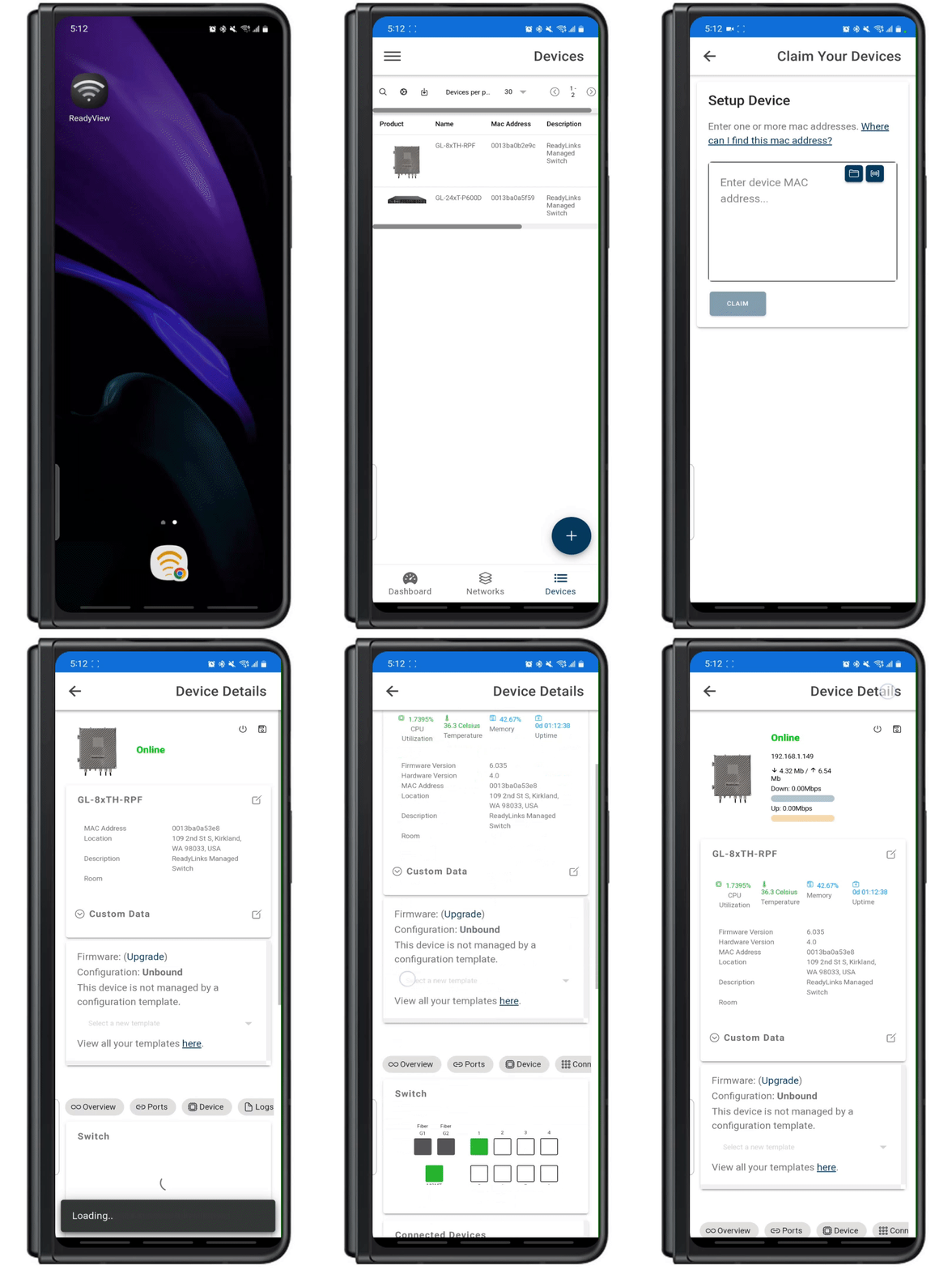
Congratulations! You've successfully claimed your ReadyLinks device.
Troubleshoot: Once the device is powered on and connected, it could take a few minutes for the device to connect back to the ReadyLinks cloud. If you are still having trouble claiming your device. Ensure the device is on a network with proper firewall rules configured.
-
Configuration templates
Configuration templates designed to simplify and streamline the setup and management of multiple network devices. These templates allow you to define standardized settings and apply them across your network, ensuring consistency and reducing manual configuration efforts.
Key Features:
-
Template Creation:
- Create custom configuration templates tailored to your network's specific needs.
- Define settings for VLANs, IP addresses, QoS policies, security protocols, and more.
- Save templates for reuse, making it easy to apply consistent configurations to new devices.
-
Template Management:
- Organize and manage multiple templates within the ReadyView interface.
- Edit existing templates to update configurations as your network requirements evolve.
- Duplicate templates to create variations for different segments of your network.
-
Bulk Application:
- Apply configuration templates to multiple devices simultaneously, saving time and effort.
- Select devices individually or use filters to apply templates to groups of devices based on specific criteria.
- Schedule template applications to occur during maintenance windows, minimizing disruption to network operations.
-
Template Versioning:
- Maintain versions of your templates to track changes and ensure rollback capabilities if needed.
- Compare different versions to understand the impact of configuration changes over time.
-
Compliance and Standardization:
- Ensure compliance with organizational policies by enforcing standardized configurations across your network.
- Reduce the risk of misconfigurations and enhance network reliability through consistent device settings.
Benefits:
-
Efficiency:
- Streamline the deployment and management of network devices by reducing manual configuration tasks.
- Quickly onboard new devices by applying pre-defined templates, speeding up the installation process.
-
Consistency:
- Achieve uniform configurations across all devices, ensuring a stable and predictable network environment.
- Minimize configuration errors and discrepancies that can lead to network issues.
-
Scalability:
- Easily scale your network by applying templates to new devices as they are added, maintaining consistent settings across your infrastructure.
- Adapt templates to accommodate network growth and changing requirements.
-
Flexibility:
- Customize templates to suit different segments of your network, allowing for tailored configurations based on specific needs.
- Update templates to reflect evolving best practices and technological advancements.
Use Cases:
-
New Device Onboarding:
- Simplify the process of adding new devices to your network by applying pre-configured templates, ensuring they are correctly configured from the start.
-
Network Upgrades:
- Apply updated templates to devices during network upgrades to ensure all settings are aligned with the latest standards and requirements.
-
Policy Enforcement:
- Use templates to enforce security policies, QoS settings, and other critical configurations across your network, enhancing overall compliance and performance.
Configuration templates in ReadyView provide a robust solution for managing network settings efficiently and consistently. For detailed instructions on creating and using templates, refer to the ReadyLinks documentation page.
-
-
Create a template
Follow the steps below in ReadyView to create your first configuration template. This template will then be used as the base configuration for all of the devices bound to it.
- Navigate to Settings > Configuration templates
- Click Create a new template
- You can choose to create a New template or Clone an existing template
- Provide a Template name
- Click Save
Once a template has been created you can bind it to a device to update the device's base configuration.
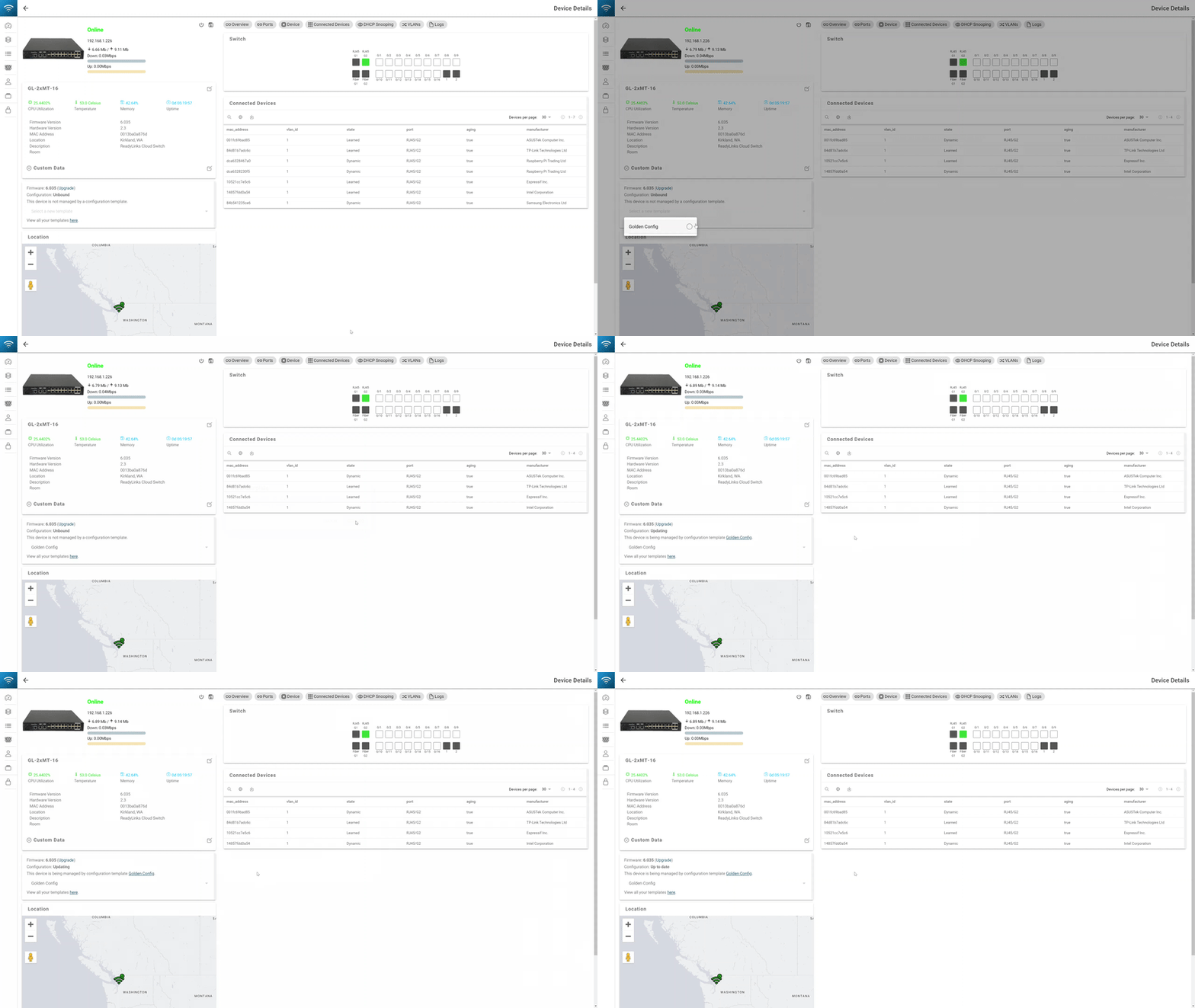
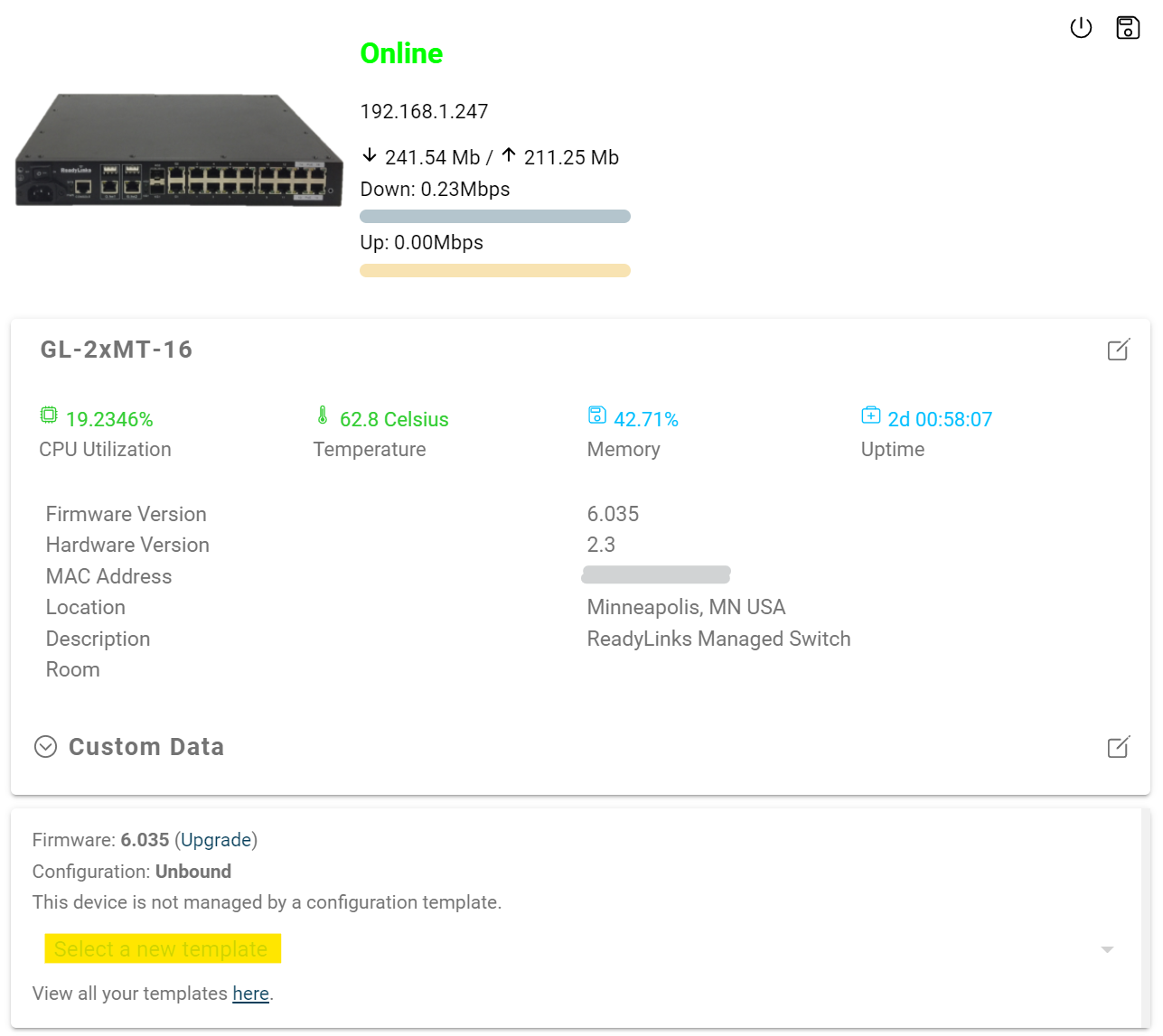
To bind a device to a template:- Click into the device
- Select the configuration template to bind
- Click Confirm
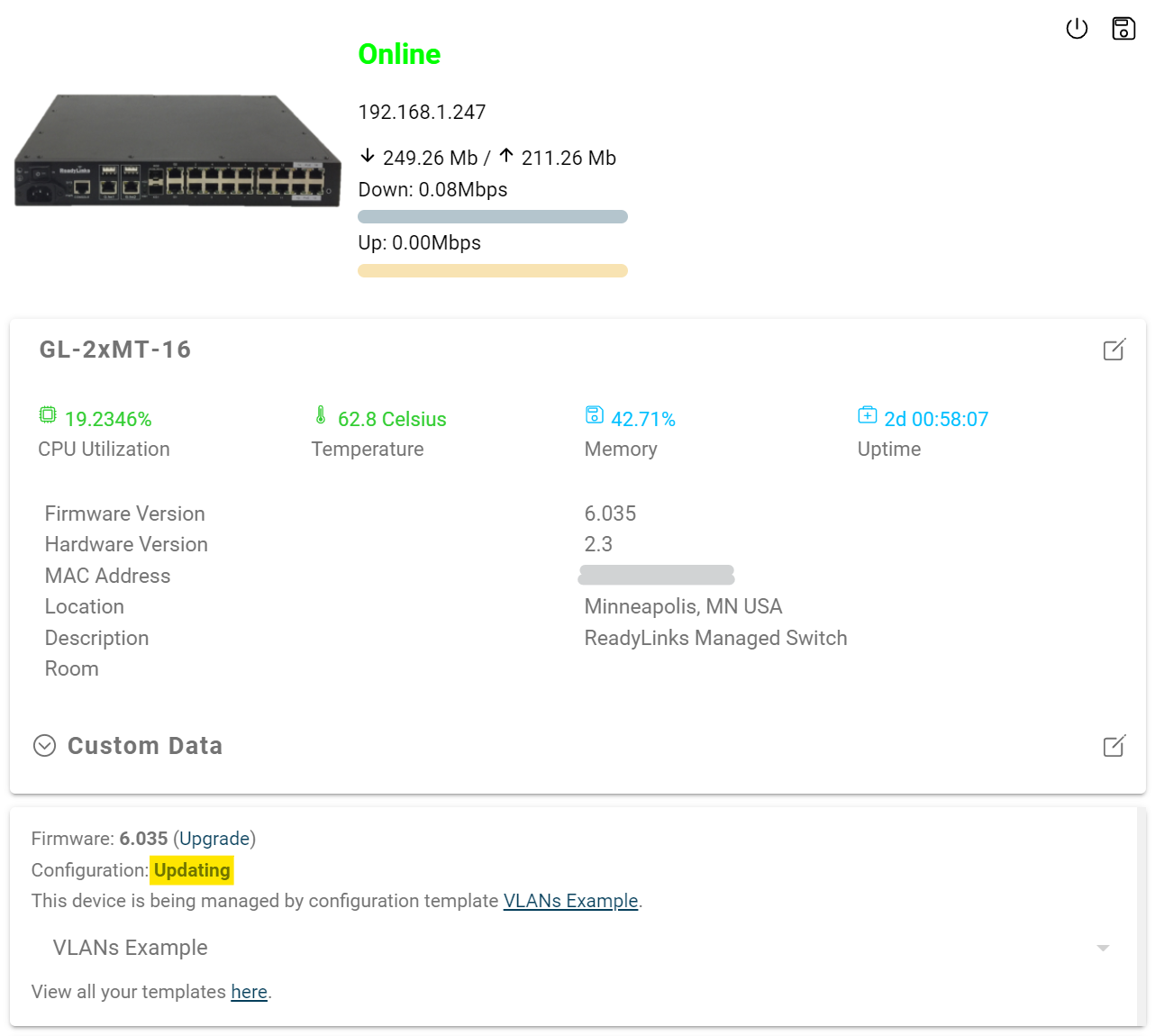
As the device is being provisioned it will show a configuration status of Updating.
Once the template binds to the device, it will show a configuration status of Up to date.
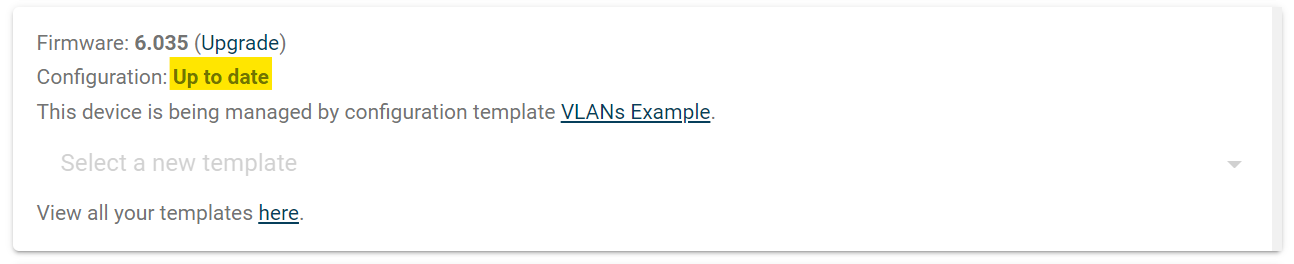
If the provisioning fails or one of the configurations causes the device to lose connection to the Internet, it will show a configuration status of Out of sync. You can always try to reapply the template, but if a configuration in the template causes the device to go offline, you will need to reboot the device to restore it to the previous running configuration.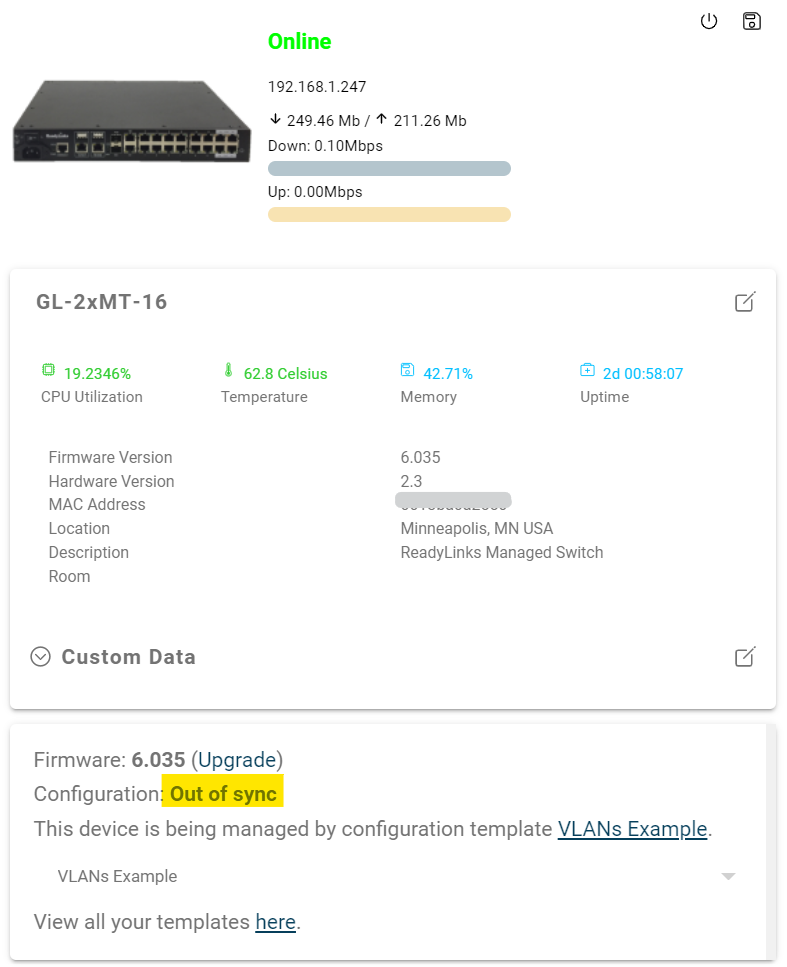
-
Firmware upgrades
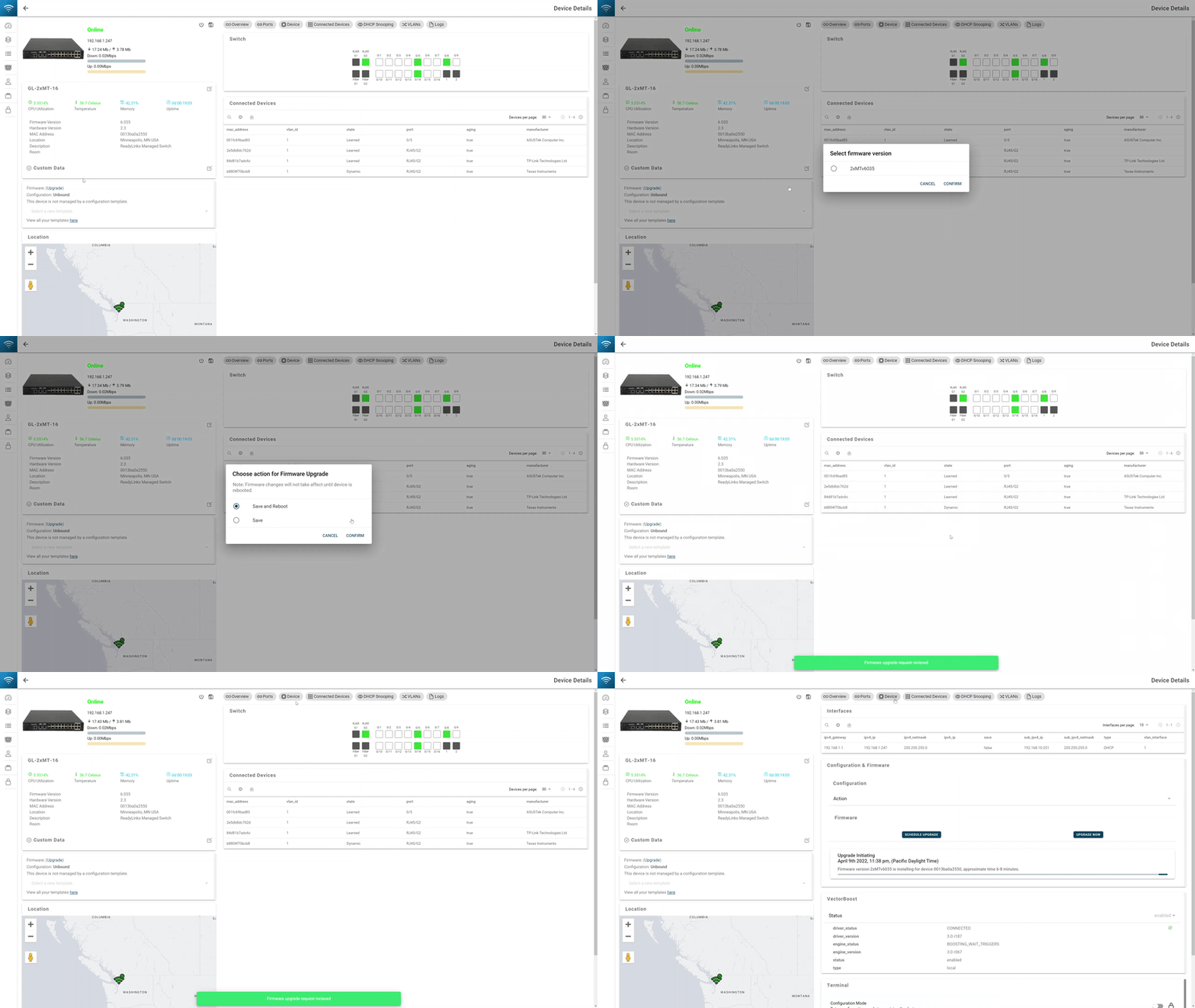
Now that you have your device claimed, you will want to upgrade it to the latest firmware version. Click into the device tab of your device page, select the upgrade now button, and choose the latest version. A firmware upgrade takes about 6-8 minutes, do not power off the device for the duration of the upgrade, the device will reboot when the upgrade is complete. You can view the status of the upgrade at any time under the device tab.
-
Device Tags
Device tags are custom labels that help you organize and quickly identify devices across your network. By tagging devices, you can group them by location, function, department, or any other criteria relevant to your organization. Tags make it easier to filter, search, and manage large numbers of devices from the ReadyView dashboard. Tags can be added to all ReadyLinks devices that are managed via ReadyView.
Tags are created at the network levelTo make a new tag:
- In ReadyView navigate to the network you wish to create tags for
- Go into the Wired or Clients tab
- In left pannel select New Tag
- Enter the name of the tag and press Add
To add a tag to a device:
- Select the Switch/Clients to add the tags to
- In the bottom tool bar press Config -> Tags
- Select the tags to add
- Press Add
-
ReadyLinks Switch Showing Offline in ReadyView
If your ReadyLinks switch is not showing online in ReadyView, work through the checks below in order. Most offline issues are caused by basic network connectivity, time sync, or DNS problems — confirming each item below will resolve the majority of cases.
Overview of checks
- Check the ReadyView connection on the switch via console/Telnet/SSH
- Verify the switch has a valid IP address
- Verify DNS server configuration
- Verify the switch's local time
- Verify firewall configuration
1. Check the ReadyView connection on the switch
Connect to the switch via console, Telnet, or SSH and run the following command to view its ReadyView connection status:
GL-8xCH# show readyview connection all
--------- ReadyView Connection Information ---------
rlicloud_443
ReadyView Status: On
Connection Status: Connected
Authentication Method: Password
ReadyView File Status: Exists
--------- ReadyView Connection Information ---------
cloud_rl_io_443
ReadyView Status: On
Connection Status: Connected
Authentication Method: Password
ReadyView File Status: Exists
What to look for:
-
Connection Status: Connected — the switch is successfully connected to ReadyView. If the switch still does not appear online in the ReadyView dashboard, contact our support team for further assistance.
- If you removed the default superuser account or changed its password on the switch and its showing connected via the CLI command, but not in ReadyView please review this guide: Changing the Default Password on ReadyLinks Switches
- Connection Status: Not Connected — continue to the next troubleshooting steps below.
2. Verify the switch has a valid IP address
The switch needs a routable IP on its management VLAN before it can reach ReadyView. Run the following command to confirm:
GL-8xCH# show vlan interface
VLAN INTERFACE    TYPE    IPv4 ADDRESS/NETMASK/GATEWAY            SECONDARY IP    IPv6
----------------------------------------------------------------------------------------
VLAN-INTERFACE32  DHCP    10.10.32.11/255.255.255.0/10.10.32.1
What to look for:
- A valid IPv4 address, netmask, and default gateway should be listed for your management VLAN.
- If no IP address is listed, configure a VLAN interface with either a DHCP-assigned or static IP address.
- If using DHCP, verify the switch received a lease and that no IP conflict exists on the network.
How to configure a management VLAN and IP
Use the following commands to create a management VLAN, tag it on an uplink interface, and assign an IP address to the VLAN interface. Replace
<vlan id>, the uplink port, and the IP details as appropriate for your environment. Valid port names includeGhn1–Ghn24,Fiber/G1,Fiber/G2,RJ45/G1, andRJ45/G2.Static IP:
configure terminal
vlan <vlan id>
name management
switchport tagged ethernet <uplink port>
end
int vlan <vlan id>
ip address <ip-address> <netmask> <gateway>
DHCP:
configure terminal
vlan <vlan id>
name management
switchport tagged ethernet <uplink port>
end
int vlan <vlan id>
ip address dhcp
3. Verify DNS server configuration
ReadyView is reached by hostname, so DNS resolution must be working. Run the following command to check your DNS configuration:
GL-8xCH# show dns
Dynamic DNS mode
nameserver 8.8.8.8
nameserver 1.1.1.1
Notes:
- If the switch is using DHCP, DNS servers are typically pushed automatically.
- If the switch is configured with a static IP address, you will need to set DNS servers manually.
Test DNS resolution against the ReadyView cloud hostname using
traceroute:GL-8xCH# traceroute cloud.readylinks.io traceroute to cloud.readylinks.io (168.61.23.187), 30 hops max, 38 byte packets
What to look for:
- The hostname
cloud.readylinks.ioshould resolve to an IP address (shown in parentheses at the start of the output). - If the traceroute is unable to resolve the hostname, review your DNS server configuration and confirm the configured nameservers are reachable.
How to manually configure DNS servers
If the switch is using a static IP address (or DHCP is not providing DNS), set the nameservers manually. Replace
x.x.x.xwith your primary and secondary DNS server addresses.configure terminal dns nameserver1 x.x.x.x nameserver2 x.x.x.x
4. Verify the switch's local time
Cloud services validate TLS certificates against the current time. A switch with an incorrect date or time will fail to establish a secure connection to ReadyView and appear offline. Run the following command to check the switch's local time:
GL-8xCH# show clock
Local Time:
        Tue  May  26  14:27:19  2026
What to look for:
- The displayed time should match the current local time (within a few minutes).
- If the time is incorrect, configure NTP on the switch. As a quick connectivity test, you can also verify the switch can reach
time.google.com.
How to configure NTP (SNTP)
The following command points the switch at Google's public time server. Adjust the zone and time offsets if your switch should display local time instead of UTC.
configure terminal
sntp client server-address time.google.com response-time 3 zone-offset <GMT #> time-offset 0
5. Verify firewall configuration
Ensure your firewall is configured to allow the following traffic through:
Source Destination Port Protocol Direction Description ReadyLinks switch rlicloud.com, cloud.readylinks.io 443 TCP Outbound ReadyView cloud communication ReadyLinks switch time.google.com 123 UDP Outbound NTP time synchronization Still stuck?
Please reach out to our ReadyLinks support specialists for further assistance.
-
Changing the Default Password on ReadyLinks Switches
This article walks you through changing the default password on ReadyLinks devices. Default passwords are publicly known — all ReadyLinks devices ship with the default login of superuser/123. Changing the default password is best practice for running a secure network. Because the superuser account is also used to connect to ReadyView, ReadyLinks' cloud-managed network monitoring platform, there are a few extra steps involved to ensure everything stays in sync.
Note: If you do not add the TACACS servers and create your new account before removing the superuser account, the switch will be unable to connect to ReadyView — no monitoring or configuration changes will be possible through the dashboard. Note that
show readyview connection allreflects the HTTP connection the switch can establish to ReadyView, not its manageability through the dashboard. The switch may appear connected locally while showing offline in ReadyView.Completing this also requires changing the login method for the HTTP web GUI to the TACACS servers, due to this you will be unable to login to the web GUI using the account you created. You still can however access the web GUI of the switch via ReadyView.
Overview
- Add TACACS servers
- Add your new account
- Remove the superuser account
- Save changes
- Check the ReadyView dashboard
1. Add TACACS Servers
configure terminal
show readyview connection all
aaa authentication login http tacacs
tacacs-server host 10.13.0.20 port 49 key FYjJ8XCeJPWFvpwTIdIN timeout 5
tacacs-server host 10.13.0.16 port 49 key FYjJ8XCeJPWFvpwTIdIN timeout 5
tacacs-server host 10.13.0.24 port 49 key FYjJ8XCeJPWFvpwTIdIN timeout 5
tacacs-server host 10.13.0.23 port 49 key FYjJ8XCeJPWFvpwTIdIN timeout 5
2. Add Your New Account
configure terminal
username <new_username> password <password> mode cipher privilege admin
3. Remove the Superuser Account
configure terminal
no username superuser
4. Save the configuration changes
write5. Check the ReadyView Dashboard
Once all of the above is completed you added the TACACS servers, added your new account, and removed the default superuser account, you should now see your switch online in ReadyView.
Still stuck?
Please reach out to our ReadyLinks support specialists for further assistance.